How to Implement a Custom Consent Banner with Google Analytics
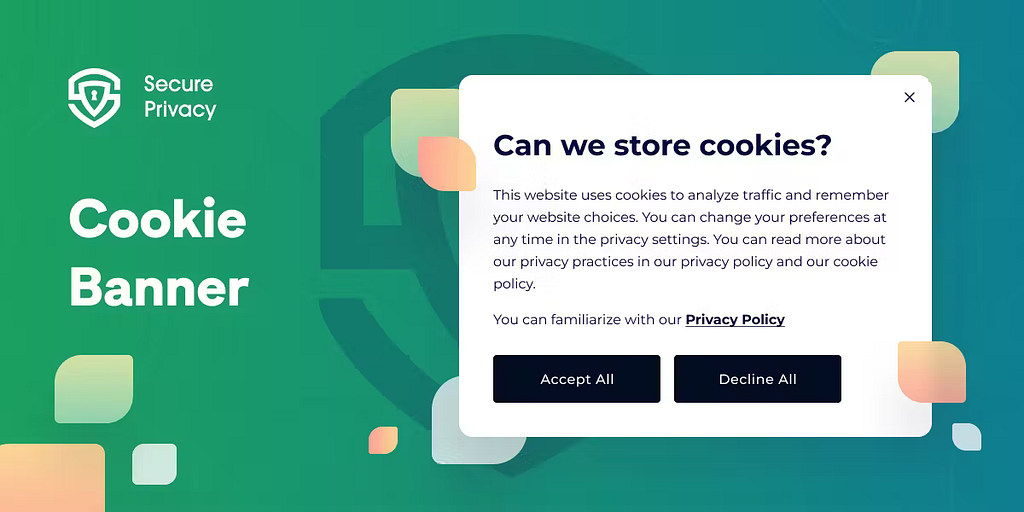
Privacy regulations require obtaining user consent before data collection. Improper implementation causes errors in GA4 Consent Settings.
Why Custom Consent Banners Matter
Businesses need consent banners matching their branding while maintaining technical compliance. Regulations require consent before storing or sharing user data.
React Implementation
Store a user_consent flag in local storage or cookies. Show the banner if absent (first-time visitor); hide if it exists.
const consentPropertyName = "user_consent";

const shouldShowPopup = () =>
  !(
    localstorage.getItem(consentPropertyName) === "false" ||
    localstorage.getItem(consentPropertyName) === "true"
  );
Consent Configuration
Default consent script execution order is critical. Place in the <head> section before other scripts:
gtag('consent', 'default', {
  'ad_storage': hasUserConsent ? 'granted' : 'denied',
  'ad_user_data': hasUserConsent ? 'granted' : 'denied',
  'ad_personalization': hasUserConsent ? 'granted' : 'denied',
  'analytics_storage': hasUserConsent ? 'granted' : 'denied',
  'wait_for_update': 500
});
The wait_for_update parameter pauses gtag for 500 milliseconds, allowing time for updated consent.
User Consent Updates
When users grant consent, update tags:
window.gtag('consent', 'update', {
  'ad_storage': 'granted',
  'ad_user_data': 'granted',
  'ad_personalization': 'granted',
  'analytics_storage': 'granted'
});
Testing
Use the Network tab filtering "collect" to view Google Analytics requests. Verify setup with Tag Assistant.
GA4 Behavioral Modeling
GA4 uses behavioral modeling to estimate aggregate behavior of non-consenting users based on similar consenting users. This requires meeting thresholds like 1,000+ events per day with analytics_storage set to 'denied'.